With 'Remote Control Commands,' viewers can trigger toy vibrations remotely, bringing an interactive experience that boosts room engagement and revenue!
🔌 Supported Toy Brands & Models
MonsterPub
SISTALK 1X
Magic Kiss
Amazing
SVAKOM
Pulse Union
Trysta Neo
Lovense
Lush 3
Lush 4
Domi 2
Nora
Mini Sex Machine
Gemini
Tenera
Qingnan
#16
LELO
SWITCH
INA Thrust
We-Vibe
Sync Go
Toy connection supports both Mobile Live Stream and PC OBS Live Stream modes:
📱 Mobile Toy Connection Steps
Turn on the toy and Bluetooth: Press and hold the power button to turn on the toy, and enable Bluetooth on your phone.
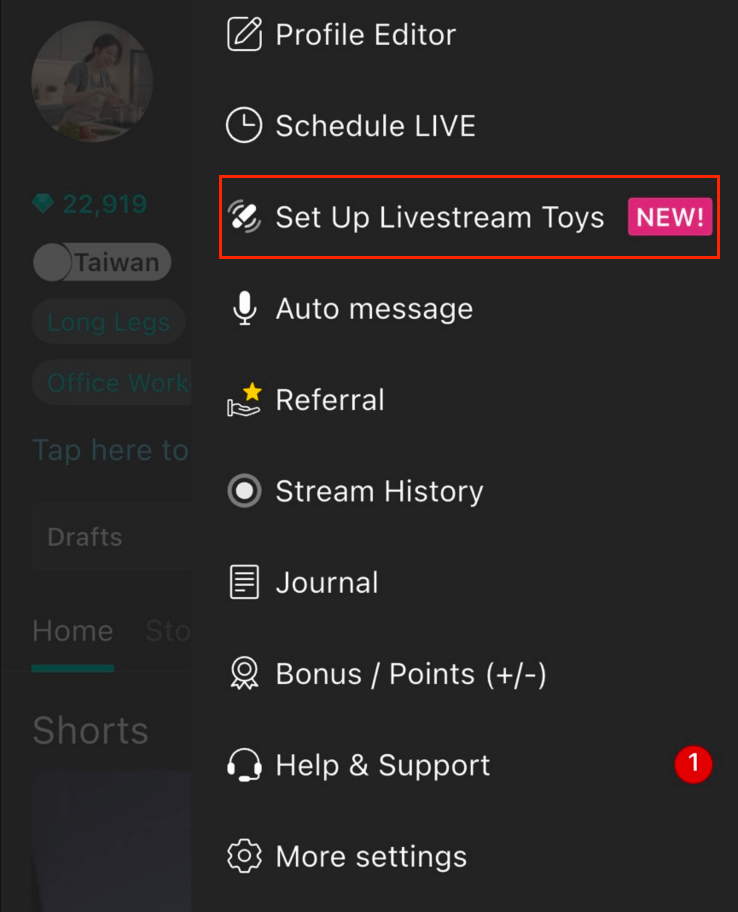
Go to App Settings: Open the Moor App ➔ Go to "Personal Center" ➔ Tap the top-right menu (≡) ➔ Select "Toy Settings".
⚠️Pairing steps may vary slightly depending on the brand:
Lovense, SVAKOM, MonsterPub, Qingnan: Turn on the toy to start pairing.
LELO: Press and hold the toy’s button until the LED starts flashing to enter pairing mode. During pairing, press the button once more to confirm the connection.
We-Vibe: Press and hold the toy’s button until it vibrates twice to enter pairing mode. After the first successful pairing, the toy will automatically reconnect each time it is turned on. If you don’t want it to connect automatically, select “Forget Device” in Moor and manually pair it again when needed.
Search & Pair: Find your toy under "Other Devices" and tap to pair.
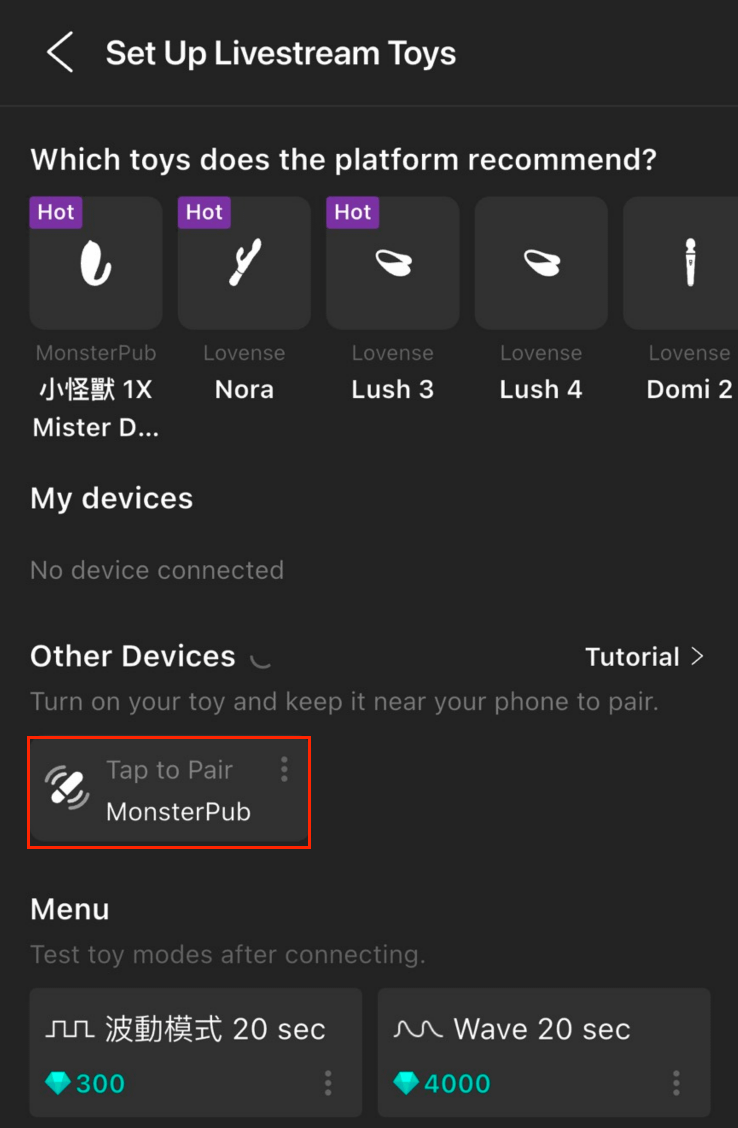
Vibration Test: Once paired successfully, it will move to "My Devices", indicating the connection is complete.
🖥️ PC OBS Toy Connection Steps
After starting your stream via OBS, click the Toy icon on the screen to open Toy Settings.
Power On & Enable Bluetooth: Long-press to power on your toy and make sure your PC's Bluetooth is turned on.
Browser Pairing: A pairing request will pop up in your browser. Click Pair, and the toy will appear under "Other Devices".
Complete Connection: Click on the toy to pair it; it will move from "Other Devices" to "My Devices", completing the setup.
💎 Toy Connection Test & Diamond Price Settings
Once connected, you can test vibration intensity and set your earning thresholds using the options below:
Intensity Test: After connecting, click the "Connected Toy" button or open the bottom menu to test and feel the vibration intensity directly.
Customize Diamond Price: Click the "..." button next to the menu to adjust required diamonds based on your preference (ranging from 100 to 5,000 Diamonds).
⚠️ Important Notes
Remote control command names are default and cannot be modified.
If you wish to disable remote control commands during a livestream, you must disconnect the toy’s Bluetooth or network connection. (Go to Toy List > Select Toy > Disconnect)
Remote control commands cannot be toggled off individually. You can only enable all commands at once or leave the toy disconnected.
💡 Pro Tip: Streamers can connect up to two Bluetooth toys simultaneously in the same stream! When a fan sends a remote command, all connected toys will vibrate at the same time!
🛠️ Troubleshooting & FAQs
Q1. What should I do if I can't find my device, or if the toy doesn't vibrate when clicking the test button?
Search Again: Try clicking the "Search" button again.
Check Bluetooth Permissions: If the device still cannot be found, the Moor App may lack Bluetooth authorization. Go to your phone's Settings > Moor > Turn on Bluetooth permission.
Try Resetting (Follow these steps in order):
Turn off the toy and power it back on, then try again.
End the current stream and start a new live stream.
Force-close the Moor App (swipe it away) and reopen it.
Restart your mobile phone, then reopen the app to reconnect.
Q2. Why can't I connect my Lovense toy no matter what I try?
Check Toy Name: The Moor App currently does not support Lovense toys with customized names.
Solution: Open the original Lovense App used to change the name, clear/delete the custom name, and restore it to the factory default name. You should then be able to connect normally.
Q3. Still unable to connect? Try clearing your Bluetooth history:
Clear Mobile Bluetooth Records: Go to your phone's Settings > Bluetooth > My Devices, find all previously connected toys, and tap "Forget This Device" (Unpair).
Restart & Re-pair: After clearing, reopen the Moor App, check if the "Test" button appears in the toy list, and tap to test again.