When going live, streamers can turn on the switch to allow users to initiate requests for either "1:1 Mode" .
Accepting Invitations
Receive Invitation Prompt
When a user sends an invitation, a "Requests" prompt will appear in the top-right corner of the live stream screen.
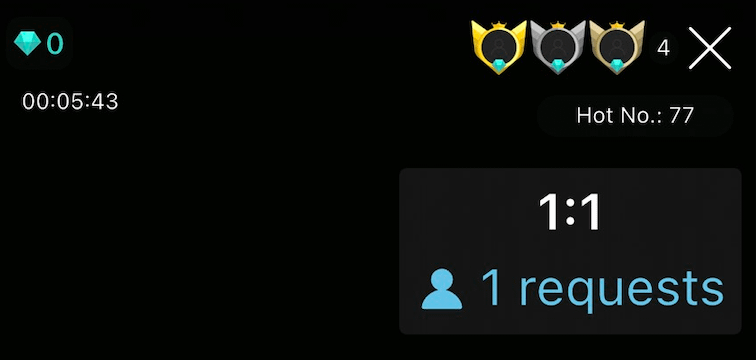
View & Evaluate:
Tap the prompt to view the inviting user's details and decide whether to accept the invitation.
Time Limit (3-Minute Window)
Once you receive an invitation, you have 3 minutes to make a decision. If no action is taken within 3 minutes, the system will automatically decline the invitation.
Transition Preparation (1-Minute Countdown)
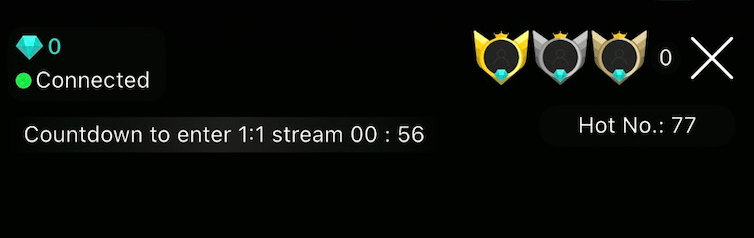
After tapping "Accept," a 1-minute countdown will begin on the screen. Once the countdown ends, the stream will officially switch to the requested mode.
⚠️ Important Note
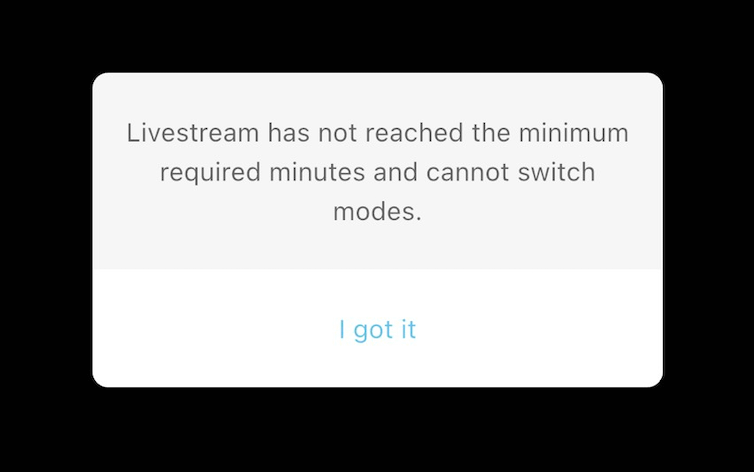
During the 1-minute countdown after accepting a user's invitation, the system will lock changes. You cannot manually switch to other live stream modes during this period.