
OBS (short for Open Broadcaster Software) is a free and open-source live streaming application available for Windows, Mac, and Linux.
By using OBS on your computer, you can produce richer, more professional live streaming effects in your stream room.
1. Preparation
Download and install the OBS software on your computer via the [OBS Download Link]. Log into your SWAG creator account at https://swag.live/, and follow the steps below.
2. Log in to SWAG on Your Browser to Start Streaming
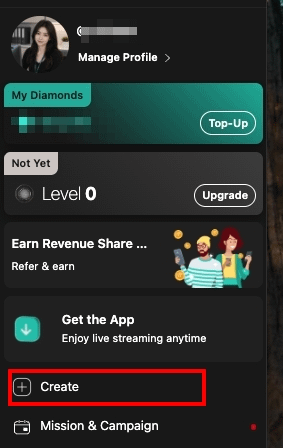
Click your personal profile avatar in the upper right corner, then click the "Create" button.
3. Configure Your Live Stream Settings
Fill in details that accurately reflect your stream's content. Make sure to craft an eye-catching title to attract viewers!
4. Click "Start Live"
Click the "Start Live" button to proceed.
5. Stream Connection Settings
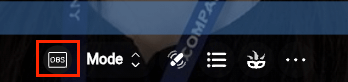
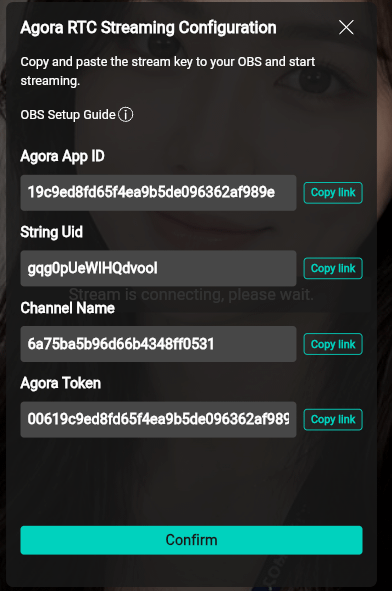
Click the OBS button at the bottom of the screen to open the Agora RTC streaming setup page. Copy and input these server configuration details into OBS to complete the connection setup.
📖 Full Setup Tutorial: Please open this link and follow the step-by-step instructions: https://events.swag.app/obs-guide/
📡 Stream Status Indicators
On the SWAG webpage, your live status will display as follows:
"Connecting to signal, please wait...": Connection is not yet successful.
"Signal source connected": Connection is successful; viewers can now see your live stream feed.

🛑 Ending Your Live Stream
To stop streaming, click the "X" icon in the upper right corner of the SWAG webpage to end the stream on SWAG's side. Then, return to OBS and click "Stop Streaming" to completely close the broadcast.