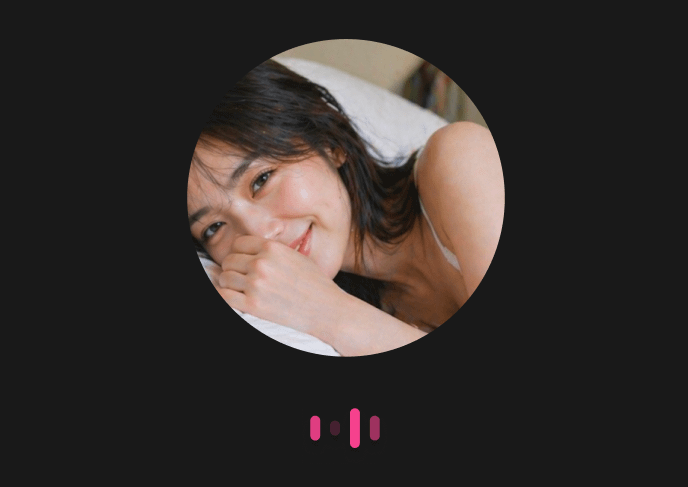
Have you ever had moments where you didn't feel like showing your face and just wanted to accompany everyone with your voice? Whether you don't feel like putting on makeup, just got out of the shower, or simply want to have a deep conversation with your fans using only your voice—we heard you loud and clear!
Our brand-new feature, [Audio Live], is officially launched! 🎉 Enjoy the comfort and freedom of going live anytime, anywhere with just one tap. Check out how to start your very first Audio Stream below!
Step 1: Set Up Stream Information Tap the [Audio Live] button inside [Stream Info Settings] to edit your stream title and tags. Once configured, tap the [Save] button at the very bottom to complete the setup.
⚠️ Important Note: Once the stream has started, you cannot switch stream types mid-way (e.g., from Audio Live to Video Live). If you need to change the type, please end the current stream first and start a new one.
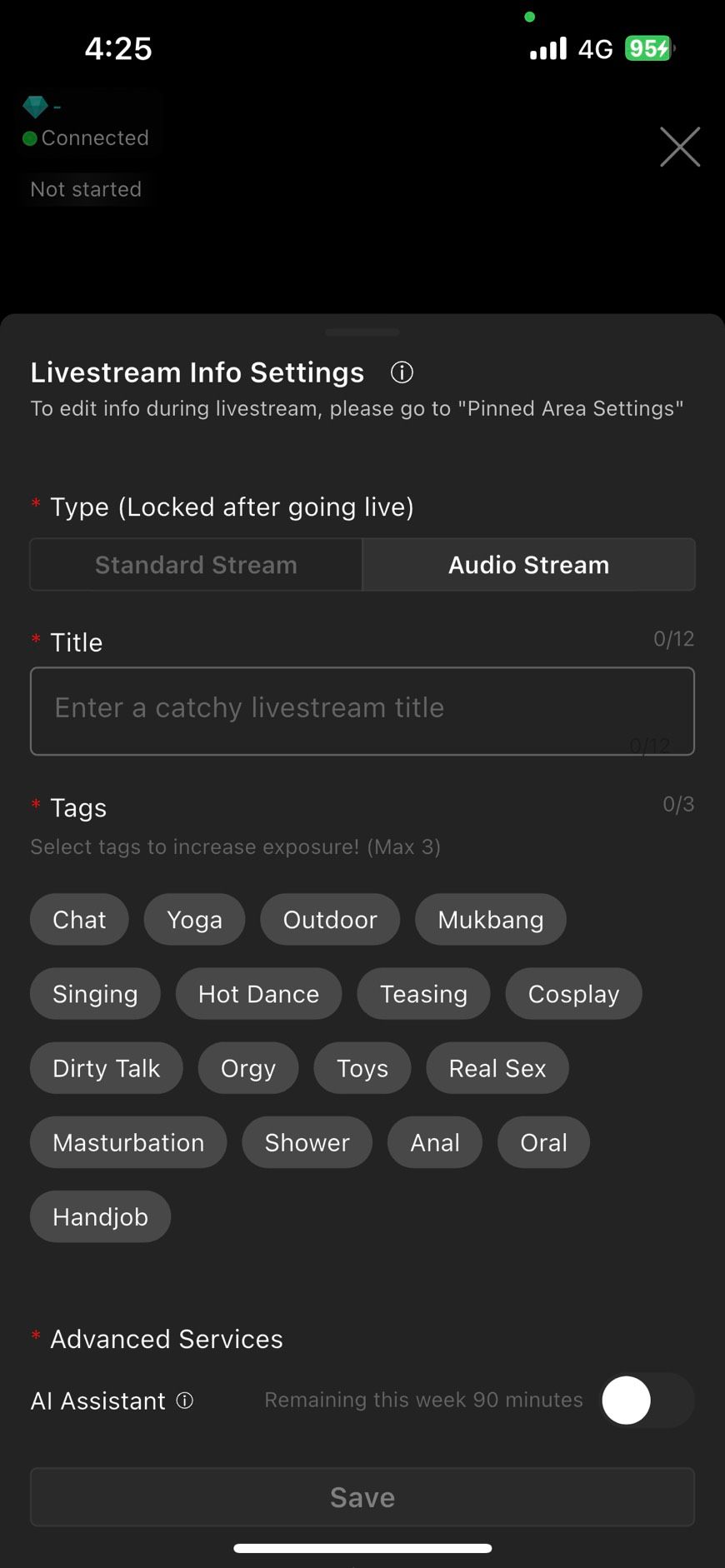
Step 2: Go Live Double-check your stream info, then tap the [Go Live] button at the bottom of the page to start your broadcast!
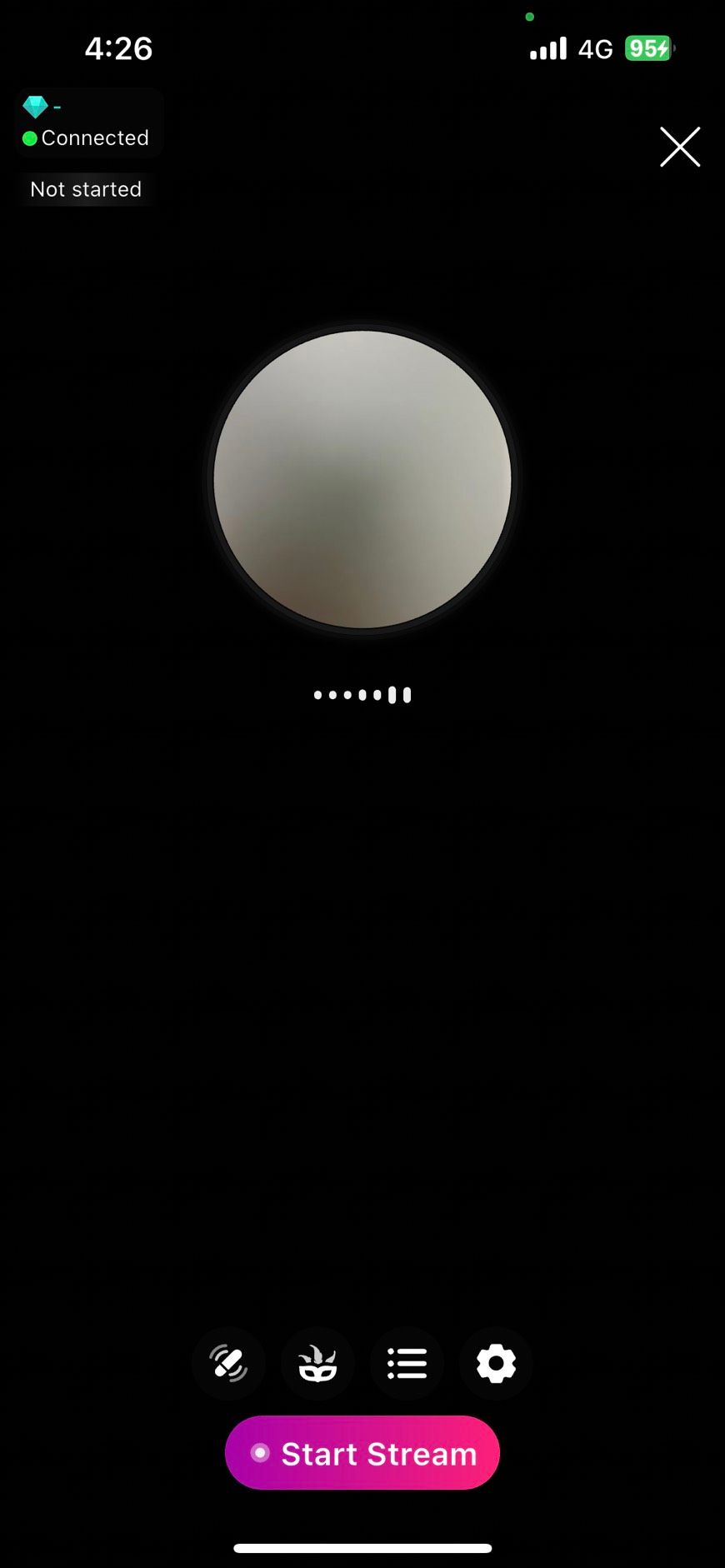
Step 3: Flexibly Switch Stream Modes
Inside the stream room, you can adjust your stream mode via the [Mode] button at the bottom left: Audio Live also supports starting a "Performance Show" mode.
If a user sends you a "1-on-1" invitation, you can also directly accept it to launch the private session!
Stream Status Indicators
Silent State: When the creator is not speaking or no sound is detected, the white dot beneath your avatar will remain still without any audio waves

Active Audio: When sound is detected, the white dot below your avatar will display audio wave animations.
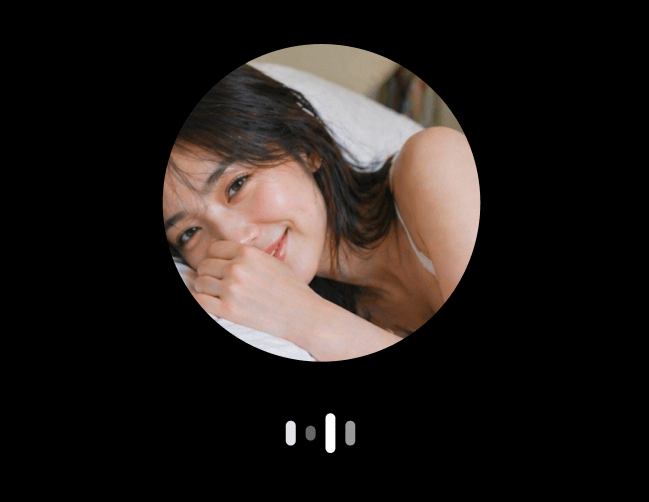
Tease Command Received: When a user triggers a "Tease Command", the wave animation turns yellow, and the required performance details will appear in the top right corner.
Toy Command Received: When a user triggers a "Toy Command", the wave animation turns red, and the specific toy command clicked by the user will appear in the top right corner.